Choose digital or analog
A digital clock lets you read hours and minutes directly. An analog clock can help you judge the approximate time from the dial. At the size you will actually use, check that digits have room and hands remain distinct from tick marks before choosing decoration. Leave separate space for a date or weekday if you need one.
Explore widget options, then open a design in the app. Use the sizes and content actually offered; a home screen clock does not establish a lock screen version. The iPhone placement guide explains those separate system menus.
Keep time dynamic when changing the font
The clock’s digits should read date and time data rather than a manually entered “09:41”. Fixed text is useful for a label such as “Local time”. If the time itself becomes fixed text, saving successfully will not make it advance.
- Select the time text layer in the editor and confirm that its content type is date and time.
- Choose a suitable format in the format panel, checking whether its 12-hour or 24-hour presentation is easy to interpret.
- Adjust the typeface, size and weight in the font controls without replacing the dynamic source.
- Check the text box width so longer times, dates or weekdays fit, then save.
In custom formats, “MM” means month and “mm” means minutes. At a moment when the month is 10 and the minutes are 07, mixing them up can put 10 in the minutes position. Prefer the panel’s format choices and preview. See Dynamic content and Text styling for the controls.
Check dates, time zones and both appearances
If the clock is several hours off, check device time and any time-zone setting offered by the design. If no time-zone control is available, do not compensate with fixed digits. Localized month and weekday names follow the system-region policy; a handwritten month will not keep changing as a date.
Make digits, hands and tick marks distinct from their backgrounds. Check light and dark appearances separately. Thin dark hands against a dark face, or faint text against a light face, can be hard to read. Changing one appearance should not leave the other unreadable.
On a busy background, reduce decoration inside the clock or use the wallpaper pairing guide to choose a calmer area. These are readability suggestions, not claims that one clock style saves battery.
Check which design the desktop uses
Save and prepare the design, then add the matching system widget size. On iPhone, if a placeholder or a different clock appears, hold it, open Edit Widget and select the prepared design by name. For Android, see Home screen widget steps and check download availability.
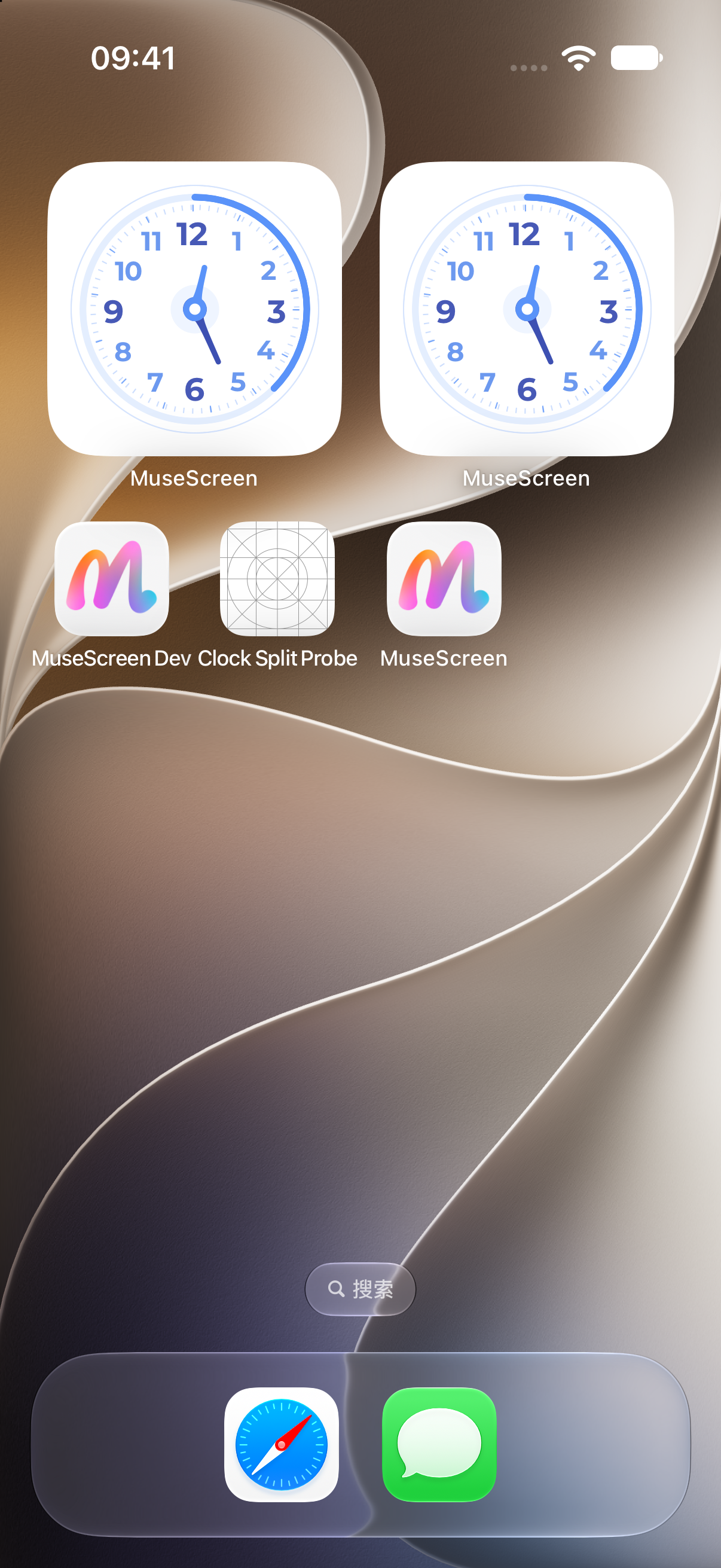
To change its appearance later, edit the design the desktop is actually using. If you edit a Library copy, the desktop may still use the original. See Edit an installed widget.
Distinguish a frozen value from a delayed update
Compare the editor preview with the system desktop. If both remain at the same value, check for fixed text or an incorrect source. If the preview is right but the desktop differs, confirm the save and selected design, then follow Refresh troubleshooting.
On iOS, system scheduling, available native time displays and the particular design affect updates. Showing seconds does not establish that the app runs every second or that every style updates continuously. An appearance preview is not evidence of a refresh rate.
When reporting a problem, note the approximate delay, OS version and design type, and keep your saved design. Use the device’s clock or timer for important timing. A decorative widget’s display alone does not establish that an alert will sound.
Frequently asked questions
Why did the time stop after I changed the font?
Check whether its content changed from date and time to manually entered text. A font changes appearance; a working clock still needs a dynamic source and the right format.
Does an analog clock always use more battery than a digital one?
Appearance alone does not establish power use. Platform, design and update behavior matter. This guide includes no battery comparison; choose for readability and inspect actual usage in your device’s battery statistics.
Why is the month appearing where minutes should be?
Custom format symbols are case-sensitive. Check whether MM, meaning month, was placed in the minutes position. Try a supplied time format before making further changes.
Can a clock widget replace an alarm?
Displaying time does not set an alarm or guarantee a notification. Configure the device alarm or the relevant record’s reminder separately and check its notification conditions.
Official references
Sources checked: 2026-10-18. After a system update, follow the official instructions and device interface for your version.