Choose which screen to customize
The home screen holds your app icons; the lock screen shows time and notifications before you unlock. Their widget lists and sizes differ. An app that offers a home screen widget does not necessarily offer a lock screen widget.
If you plan to use MuseScreen, finish the relevant setup in the app first, then check the system widget list for an entry. These system instructions do not mean every app version offers every widget type.
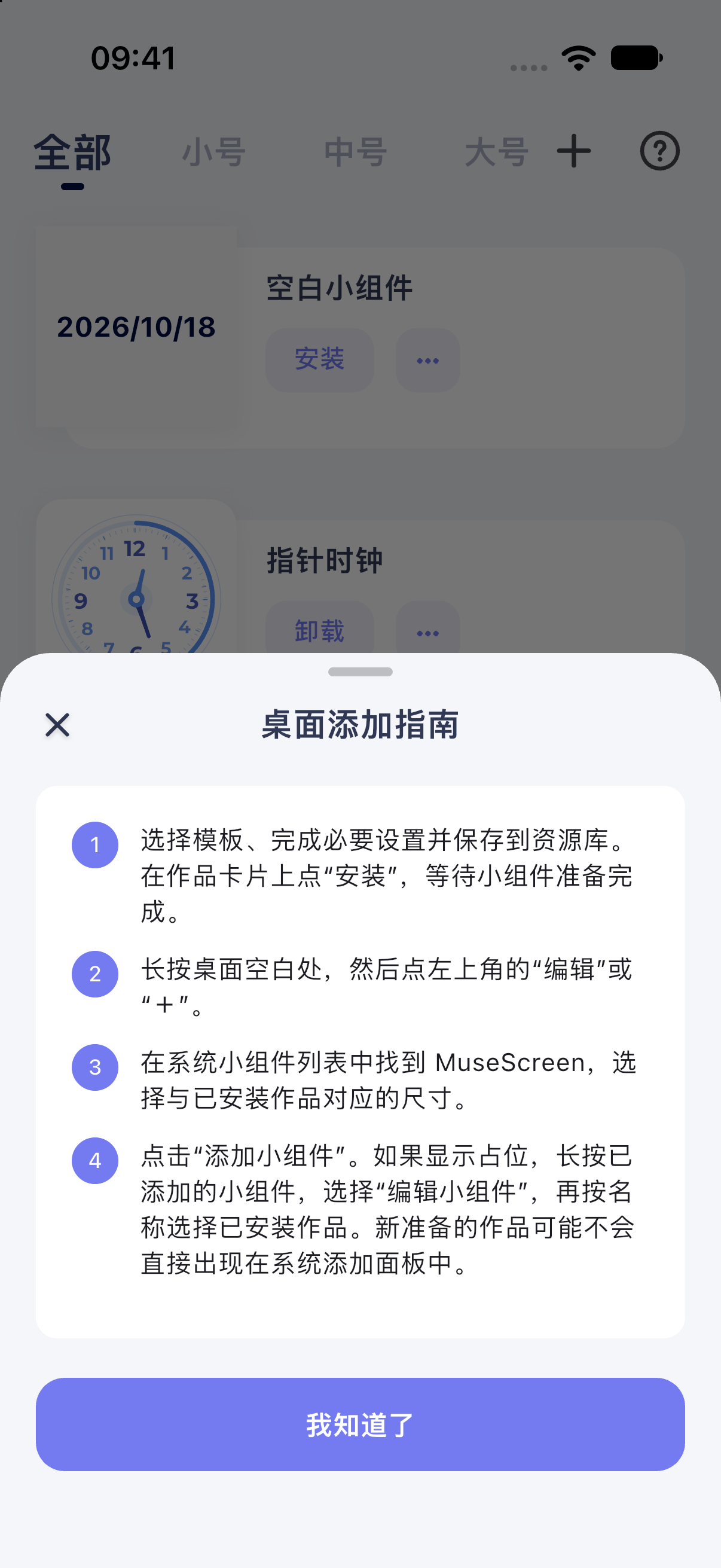
In MuseScreen, open a template preview, edit as needed, save it to Library, then follow the in-app installation guide to prepare the required size. See Add widgets and Editor basics for the app steps.
For a specific project, start with photo widgets, countdowns and anniversaries, or digital and analog clocks. Prepare the content before following the placement steps below.
Add a widget to the home screen
- Return to the home screen and hold an empty area to enter editing mode.
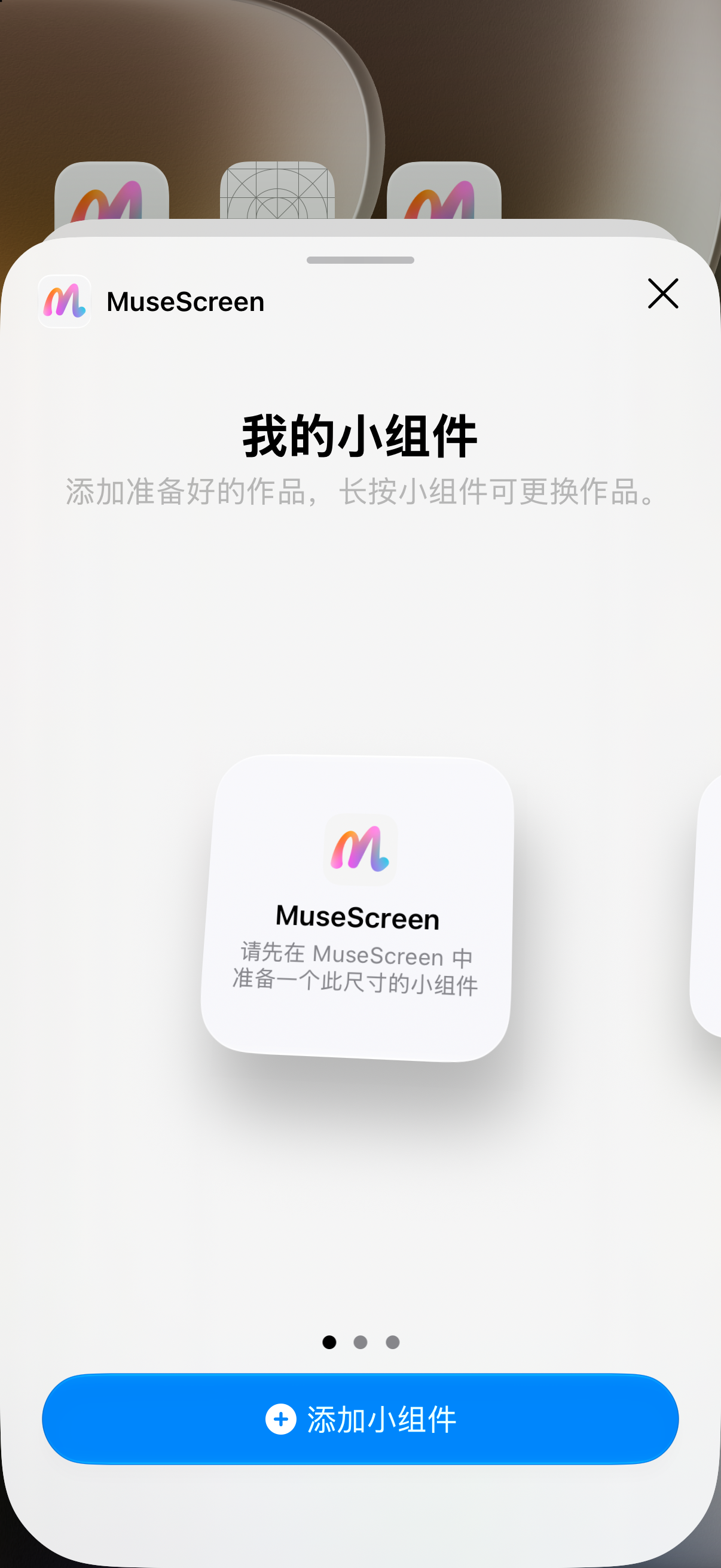
- Open the Edit menu at the top left and choose the option to add a widget.
- Find the app, browse its available styles and sizes, then confirm the addition.
- Move the widget into place and tap Done to finish.
The system picker can show a placeholder even when you have saved a design in the app. That alone does not establish an installation failure. Add the required size, hold the placed widget, open Edit Widget, and select your saved design from the list for that size. Close configuration and allow the system to update.
Instructions based on: Apple: Add and edit widgets on iPhone
Add a widget to the lock screen
You cannot drag a home screen widget directly onto the lock screen. Choose from the lock screen's own widget list.
- Wake and authenticate your iPhone, then hold the lock screen to open customization.
- Edit the lock screen you want to use and choose an item in the widget area.
- If there is not enough room, remove an existing item first, then save your changes.
Instructions based on: Apple: Add and edit widgets on iPhone
Edit a widget after adding it
Hold an existing home screen widget and check for an editing option. Available settings depend on the app; a weather widget may let you change the city, for example. Use the removal option in the same menu to remove a widget.
Styling tip: start with one useful widget and check text readability before adding more. Too much content over a detailed wallpaper can make dates and notifications hard to read.
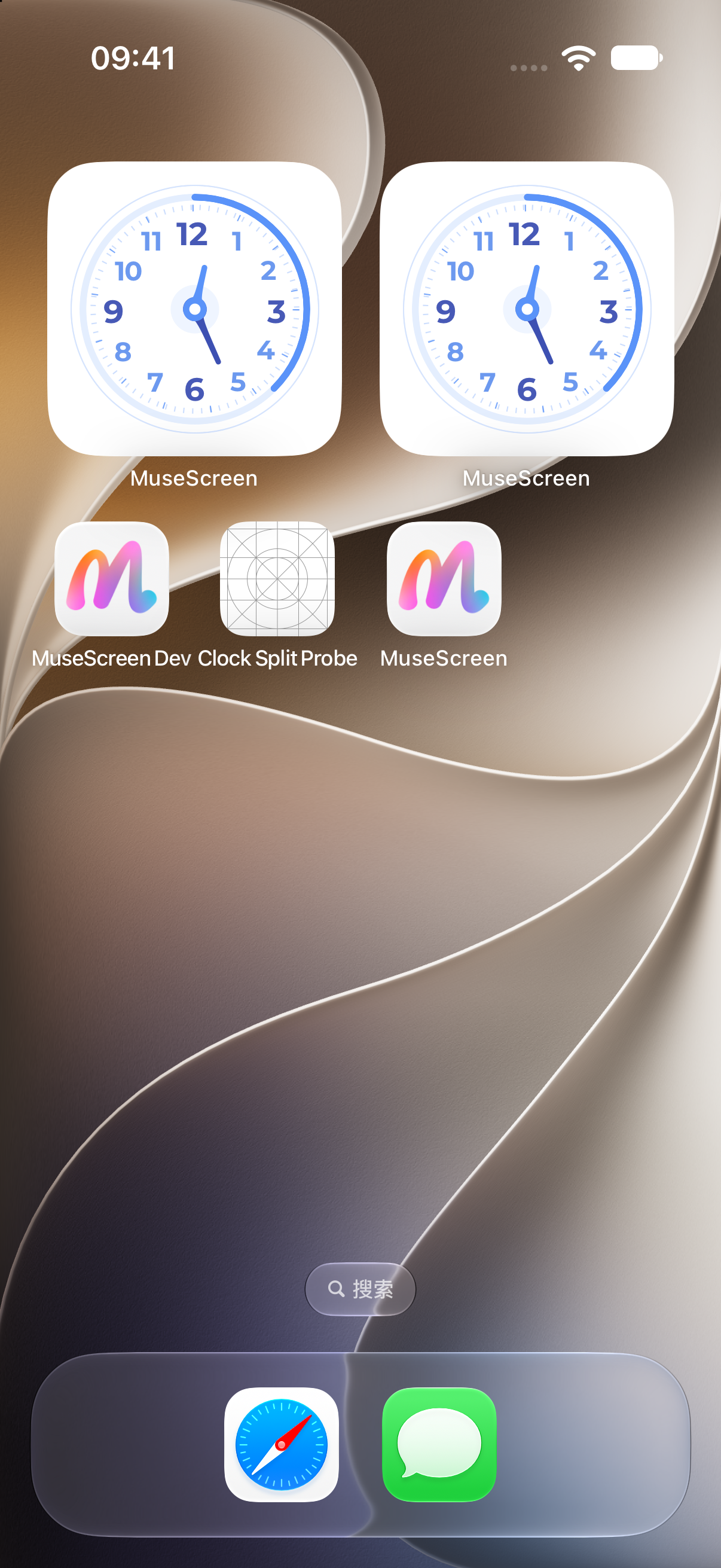
If the same-size list is empty, return to Library and confirm that saving and installation finished; a template preview alone is not enough. If a listed design remains blank, follow Missing widgets and placeholders. Keep your saved design while troubleshooting.
Instructions based on: Apple: Add and edit widgets on iPhone
Frequently asked questions
Why is MuseScreen missing from the widget list?
Check whether your installed version offers the widget type you need, and open the app to complete initialization. If the entry is still missing, consult in-app instructions or contact support. Home screen and lock screen widgets are separate capabilities.
The widget appears, but why is it showing different content?
Troubleshooting tip: return to the app to confirm your configuration is saved, then check whether the widget's editing menu requires a content selection. Allow time for a system refresh. If it still differs, try removing and adding the widget again.
Official references
Sources checked: 2026-10-18. After a system update, follow the official instructions and device interface for your version.