Give each screen a purpose
The Lock Screen emphasizes time and notifications; the Home Screen helps you find apps repeatedly. Keep colors related, give the Lock Screen a clear subject and reduce texture behind Home Screen icons. Using the same image is also fine if both remain readable.
This guide uses Candy Planet to demonstrate a checking method, not a style ranking or device compatibility promise. Browse the playful category for similar subjects, or the minimal category for quieter Home Screen backgrounds.
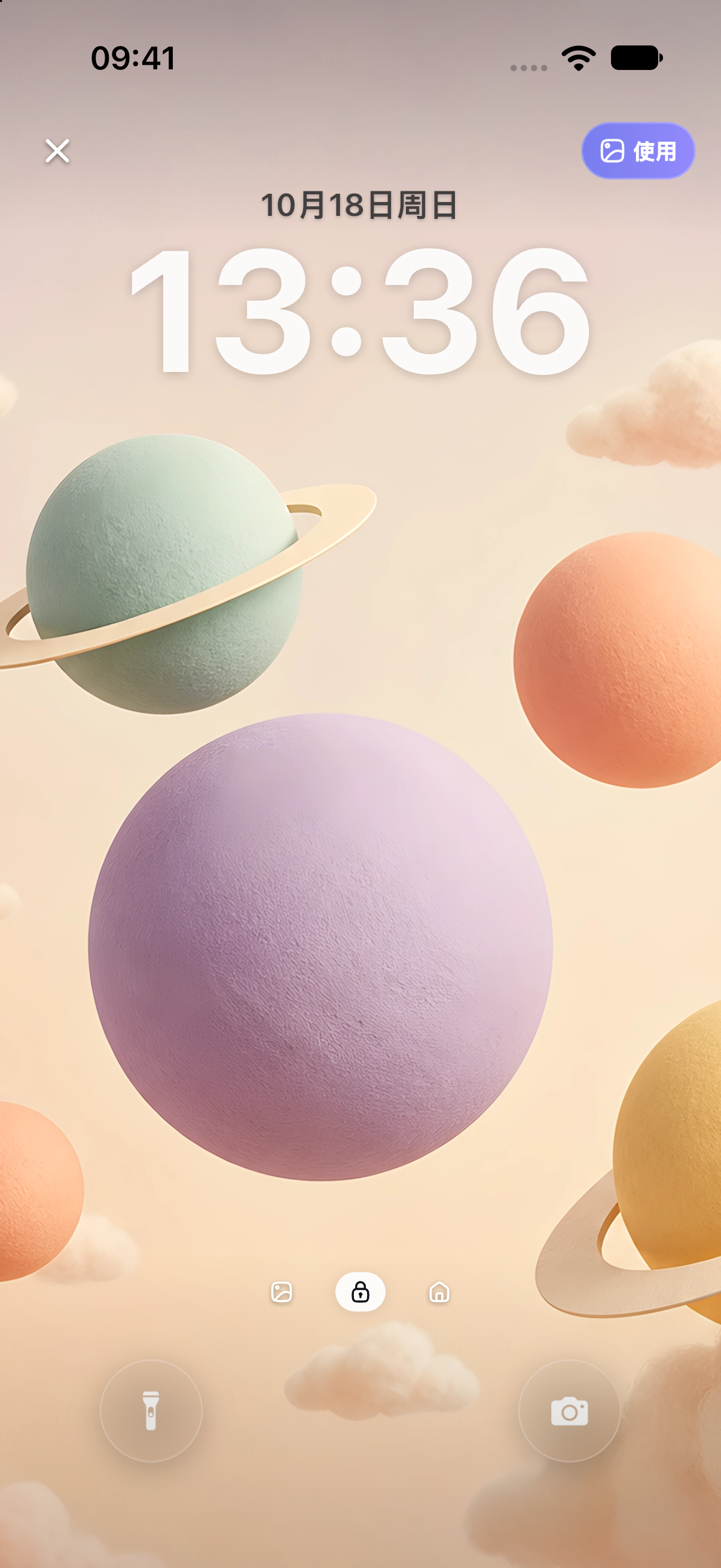
Check the clock area first
Most planets sit in the middle and lower part of the frame, leaving quieter sky behind the clock. Check whether notifications will hide the largest planet and leave room for the system controls at the bottom. Showing an entire subject is less useful if the time becomes hard to read.
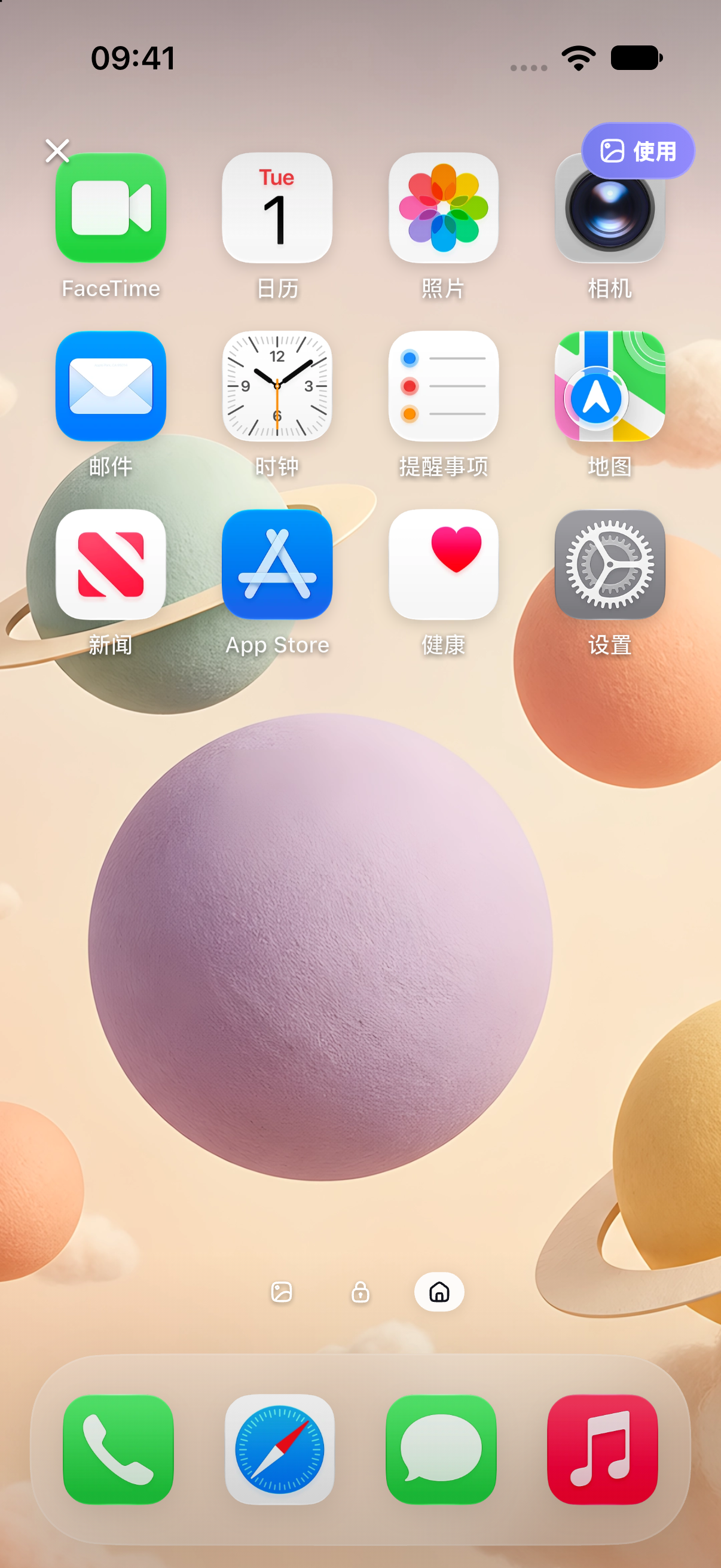
Check Home Screen icon labels next
On the Home Screen, the green planet overlaps some icon areas, creating different reading conditions. If labels are hard to see, try the system's Home Screen blur or another image with related cream or pale-purple colors and less texture. Similar colors alone do not establish a usable pair.
Apply your choice in the system
- Download or save the selected files, not screenshots containing preview clocks and icons.
- Follow the iPhone setup steps to add the Lock Screen wallpaper.
- Choose Customize Home Screen if you want a second image or a color background.
- Check the real Lock Screen and Home Screen, then adjust only the one that needs it.
Check again after adding widgets
Start with one frequently used widget and check its dates and numbers before adding more. Adjust an existing design with the widget editing guide; find system placement steps in the iPhone widgets guide. The aim is readable information, not filling every space.
Frequently asked questions
Must both wallpapers come from the same collection?
No. One or two related colors and readable clocks and icons can matter more than matching patterns. This is a styling suggestion, not a system requirement.
Does Home Screen blur modify my saved file?
System Home Screen blur is a display setting, not an edit to the saved image. Available controls depend on the current system wallpaper interface.
Why does the applied wallpaper differ from the app preview?
System fonts, notification count, icon layout and cropping may differ from the illustration. Use the actual device result and work through the size and cropping guide.
Official references
Sources checked: 2026-10-18. After a system update, follow the official instructions and device interface for your version.