Updated
Choose a starting point
| What you want to do | Where to go |
|---|---|
| Find a widget template | Home |
| Edit a saved design or create a blank one | Library |
| Add tasks, daily goals or important dates | Profile → My Content |
| Change language, permissions or refresh settings | Profile → Settings |
| Read instructions or report an issue | Profile → Help Center or Feedback |
A template is a starting point. A saved design belongs in Library. Personal content supplies records that designs can read. Several designs can use the same goal record.
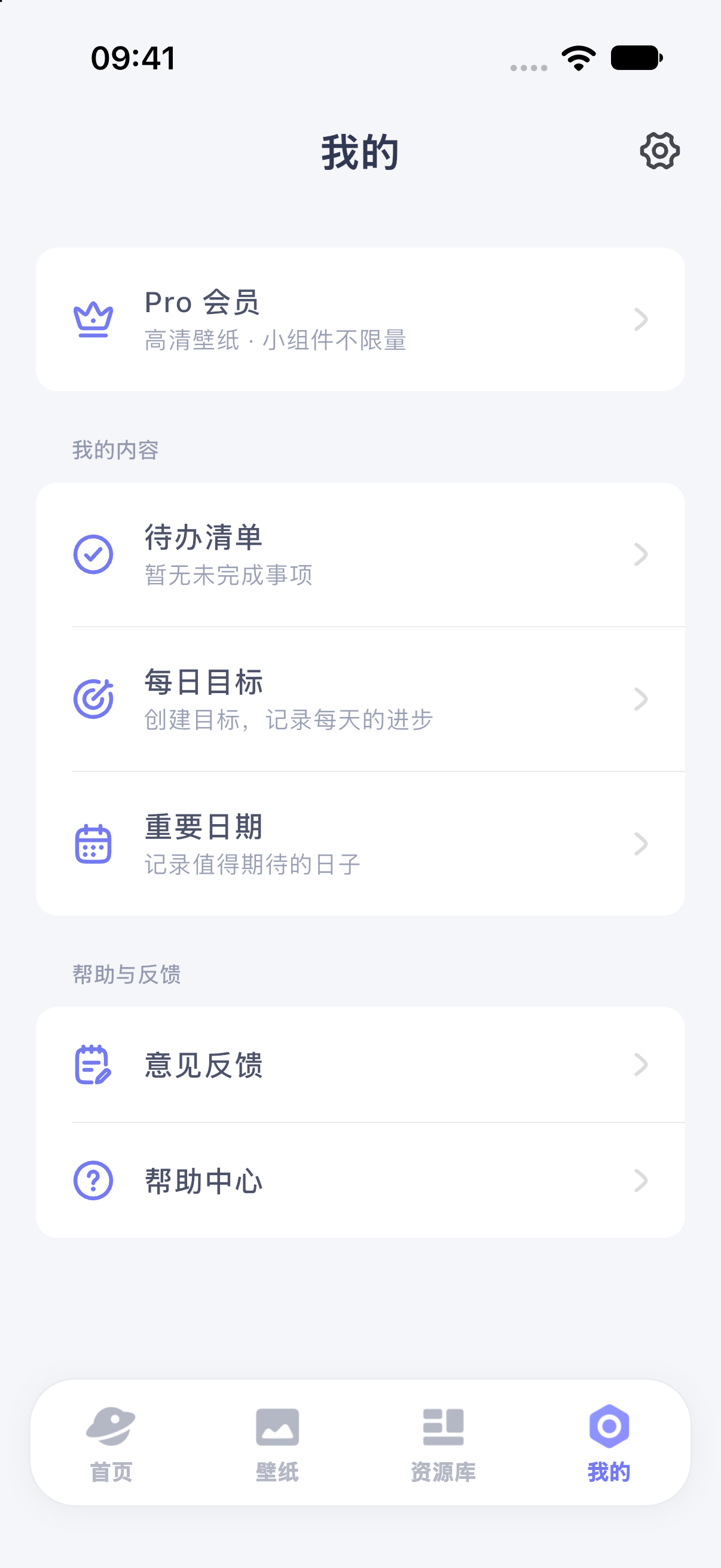
iPhone 17 simulator · iOS 27.0 · MuseScreen 2.2.0 (1). The screenshot shows the Simplified Chinese interface.
Try the main workflow
- Follow Add your first widget through system placement.
- Try editing an existing design, starting with a color change.
- Read Meet the editor when you want to create more.
Edit opens the complete editor without an additional advanced mode. To use a template as it is, complete the required settings in its preview and add it directly.
Find the right place to change something
Change task text, a goal name or an important date in My Content. Change the layout, typography or image in Library. See personal content for how these connect.
For wallpapers, start with Save and use a wallpaper.