Updated
Before you start
Use a device with MuseScreen installed. See platform availability for official downloads. The app steps below come before the separate system placement steps.
Saving is different from placing a widget. Saving keeps a design in Library. Install or Add to Home Screen prepares content for the system. Finish placement in the system interface afterwards.
Choose a template and its content
- Open Home and select a widget template. Wait for its preview to load.
- Check the content settings below the preview. Choose the important date, daily goal or task list requested by the template. You can create a record from its picker if needed.
- Read any permission explanation before granting access. A simple text widget does not need every permission.
- To change its design, choose Edit to open the complete editor. Saved work is available in Library; cancelling a new unsaved design does not create a saved work.
- To use the preview directly, choose Add and wait for preparation to finish.
If preparation reports that the design was saved but adding failed, find it in Library and retry instead of creating repeated copies.
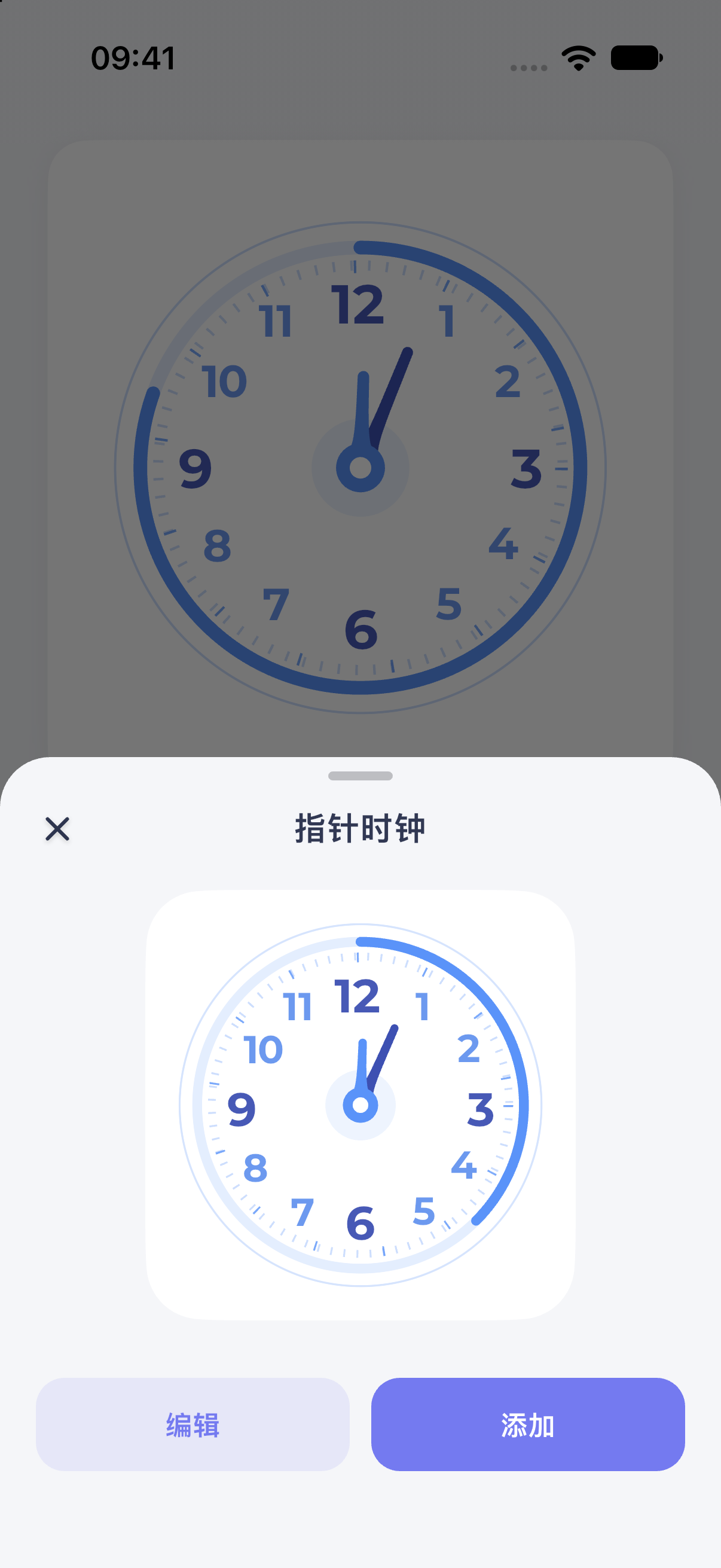
iPhone 17 simulator · iOS 27.0 · MuseScreen 2.2.0 (1). The screenshot shows the Simplified Chinese interface.
Place it on an iPhone
- Touch and hold an empty Home Screen area, then choose Edit → Add Widget. Older versions may show a plus button.
- Find MuseScreen and add the size matching your prepared design.
- If another design or a message asking you to prepare a widget appears, touch and hold the widget, choose Edit Widget and select your installed design by name.
- Leave Home Screen editing and check the image, text and selected record. If the placeholder remains, confirm the design is installed in Library, use Profile → Settings → Refresh widget data and allow time for the system to update. Keep the saved design.
The add control varies by iOS version. Home Screen and Lock Screen widgets have different lists; use the types actually offered by your installed version of MuseScreen.
In the current iOS version, a newly prepared design may not appear directly in the system gallery preview. You can still choose it from the same-size list in Edit Widget; a placeholder does not necessarily mean installation failed. After choosing once, allow the system to update. Refreshing data is a troubleshooting step, not a requirement every time you add a widget.
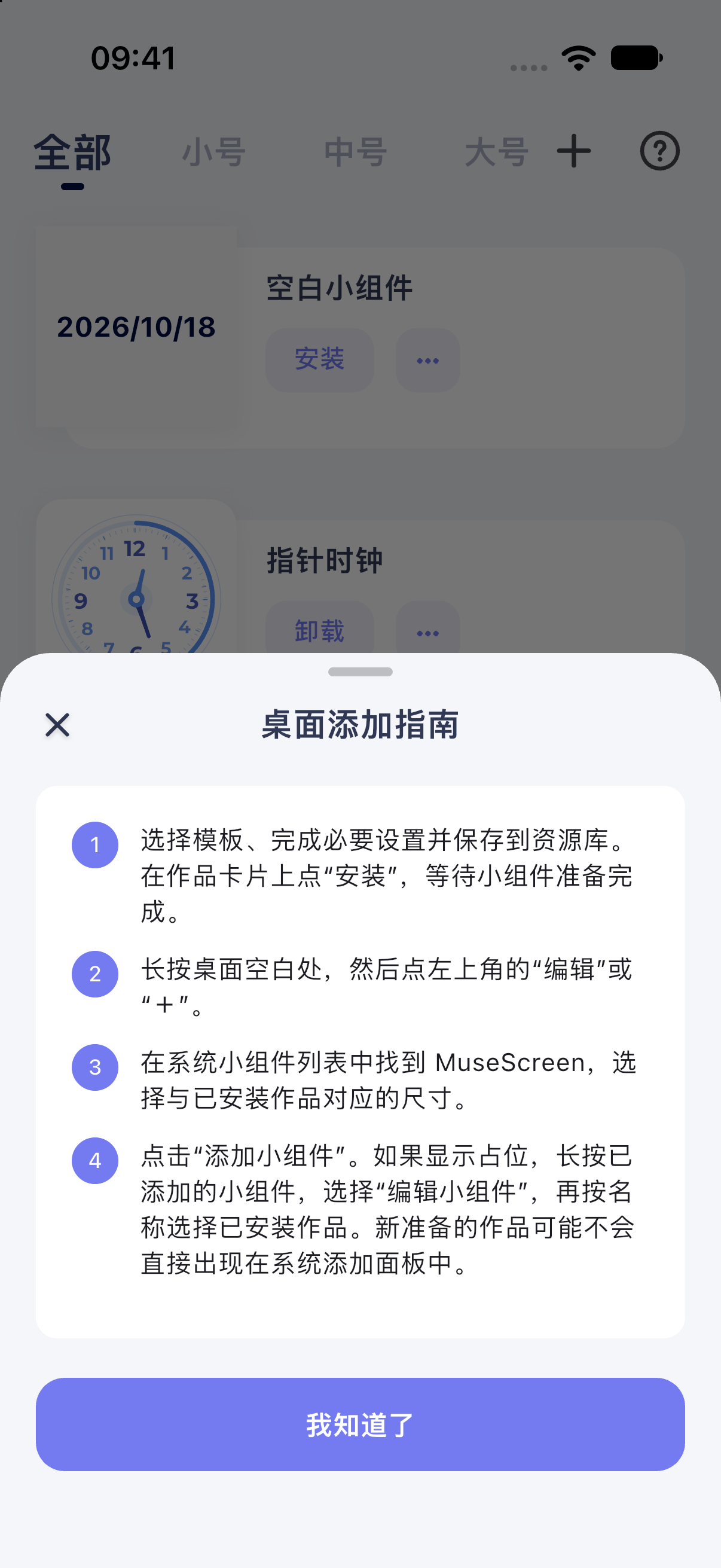
iPhone 17 simulator · iOS 27.0 · MuseScreen 2.2.0 (1). The screenshot shows the Simplified Chinese interface.
Place it on Android
- Confirm the system placement panel if one appears after the app requests addition.
- Otherwise, touch and hold an empty Home Screen area and find MuseScreen in Widgets.
- Add the matching size. If a design picker opens, select your saved design.
- Check the result. Launchers can differ in menus, previews and resizing.
See Android widget placement for more details.
Check the result
Your design should be in Library and the intended content should appear on the Home Screen. Continue with editing an existing widget.
For missing or blank widgets, see display problems. For stale content, see refresh problems. The question-mark button in Library opens the installation guide again.
Official references
Official system instructions. Menus vary by system version, device and region; these references do not establish support for every system feature in MuseScreen.