Save the image before opening Settings
Save the downloaded image to Photos, then choose it in the system wallpaper settings. The Lock Screen and Home Screen can use the same image or different backgrounds. An in-app preview does not change your system wallpaper.
Open a work in the wallpaper catalog, check its available sizes and choose Download standard size. A fresh download address is requested when you click; leaving the page open for more than five minutes does not prevent a new download. If the browser opens an image, use its sharing menu to save it. If the file goes to Files, open it there and save it to Photos. On failure, return to the work page and click again instead of bookmarking the temporary address.
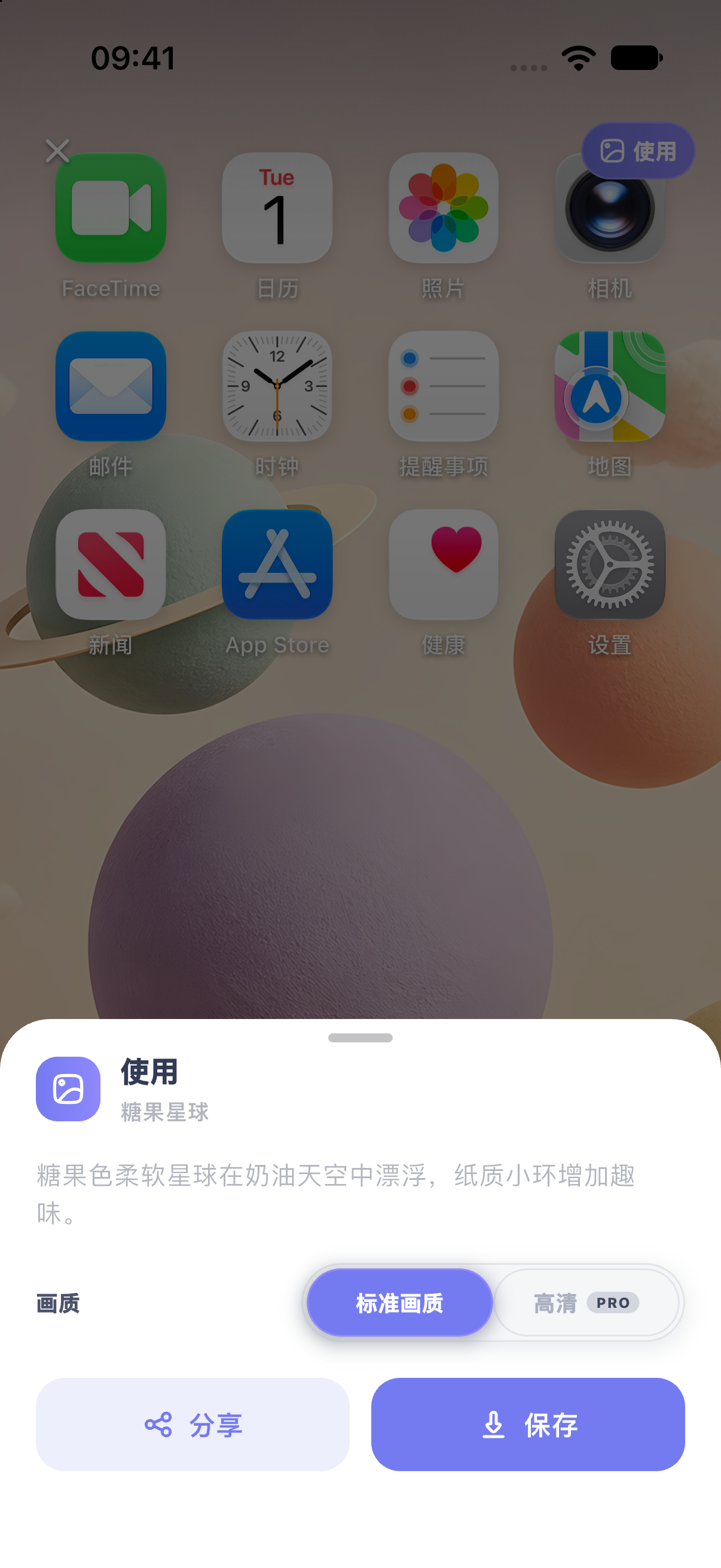
In MuseScreen, save through the following flow:
- Open a wallpaper preview and tap Use.
- Choose an available quality. HD · Pro requires the corresponding entitlement.
- Tap Save and respond to the Photos permission prompt.
- Wait for the result, then check that the image is in Photos. If saving did not succeed, see photo permissions.
If you allow adding photos only, saving can succeed without placing the image in the MuseScreen album. Check recently saved items in Photos as well as the dedicated album.
Add a new Lock Screen wallpaper
These system steps follow the Apple reference at the end of this guide. The available simulators did not expose a working system wallpaper editor, so the app previews are not presented as screenshots of these steps.
- Open Wallpaper in iPhone Settings and choose Add New Wallpaper.
- Select the saved image from Photos.
- Check the crop, clock and notification area, then add the wallpaper.
- Choose Set as Wallpaper Pair for matching backgrounds, or Customize Home Screen for a separate background.
Use another Home Screen image or adjust blur
Prioritize readable icons and labels on the Home Screen. Try another photo or a color, and compare the blur setting. If the file looks sharp in Photos but blurred only on the Home Screen, check that setting before downloading it again.
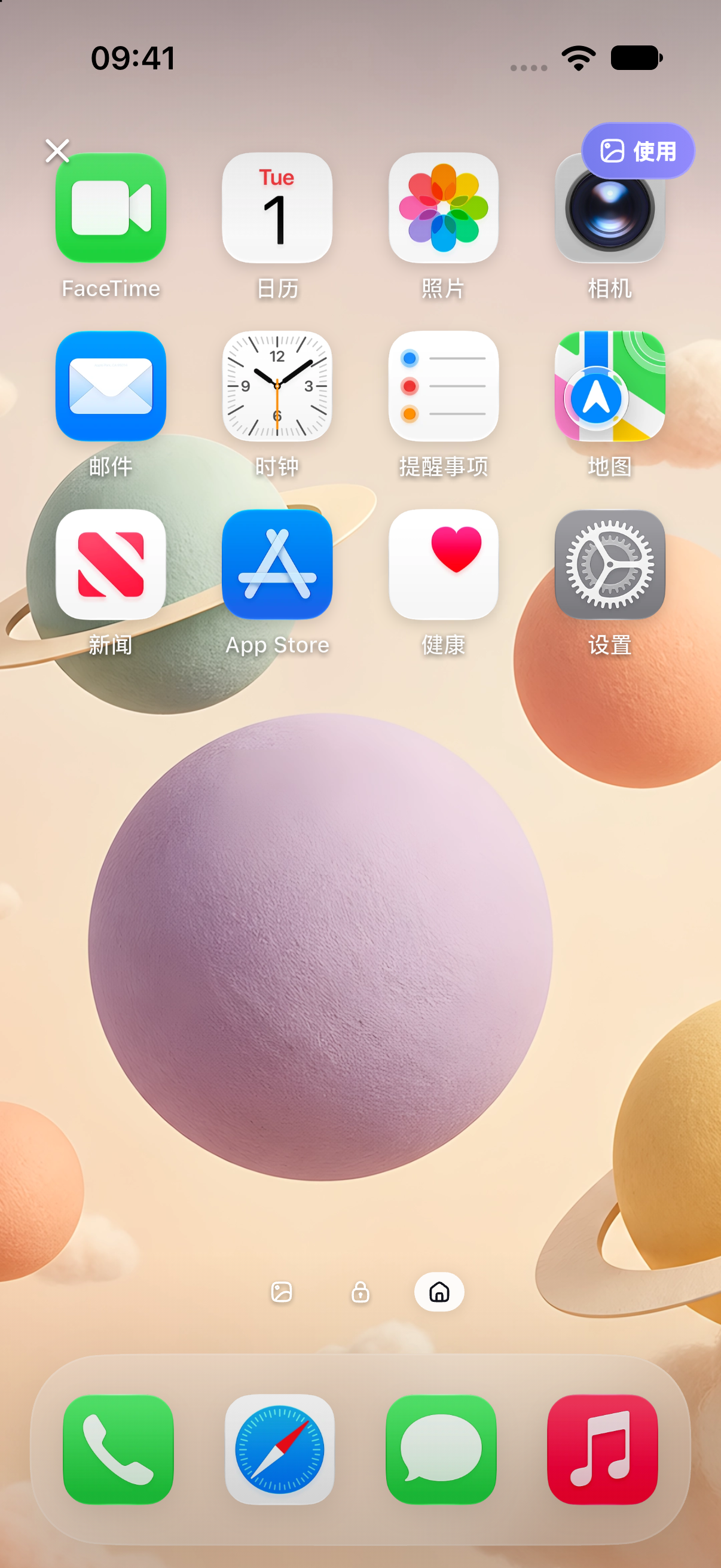
For a distinct Lock Screen subject and a quieter Home Screen, see the wallpaper pairing example.
Check three areas after applying
Check the clock on the actual Lock Screen, then the subject with notifications present, and finally the icon labels on the Home Screen. An unobstructed image alone cannot show all of these conditions.
If the subject touches the edge, reduce zoom or choose a roomier composition. Filling the screen and preserving every edge are not always possible together. The size and cropping guide explains the trade-off. For remaining blur or color differences, follow wallpaper troubleshooting.
Frequently asked questions
Will a download expire if I leave the page open?
A new address is requested when you click Download. It lasts five minutes from issuance; return to the work page and click again if an old address has expired. Files already downloaded to your device do not expire with the link.
Why are my Home Screen and Lock Screen using the same image?
Choosing a wallpaper pair uses matching backgrounds. Customize the Home Screen separately in wallpaper settings to choose another photo or color.
Does every static wallpaper support spatial or animated effects?
No. System effects depend on the device, system version and photo. This guide covers static images; an app preview does not establish support for those effects.
Official references
Sources checked: 2026-10-18. After a system update, follow the official instructions and device interface for your version.