Updated
Check the widget picker
- Open MuseScreen, check the template preview, then save and install the widget from Library.
- Find MuseScreen in the system widget picker. Home screen, lock screen and foldable cover screen use different pickers.
- Check that the installed version offers the size you need and leave enough space. If using a third-party launcher, compare with the default launcher.
In the current iOS version, a newly prepared design may not appear directly in the system gallery preview. You can still choose it from the same-size list in Edit Widget; a placeholder does not necessarily mean installation failed. After choosing once, allow the system to update. Refreshing data is a troubleshooting step, not a requirement every time you add a widget.
- Add the required size to the home screen, hold that widget, and choose Edit Widget.
- Select your saved design by name from the same-size list. If the list is empty, check saving and installation in Library.
- Close configuration and allow the system to update. In testing, one explicit selection displayed the design without an in-app refresh. This does not establish automatic gallery previews on every OS version.
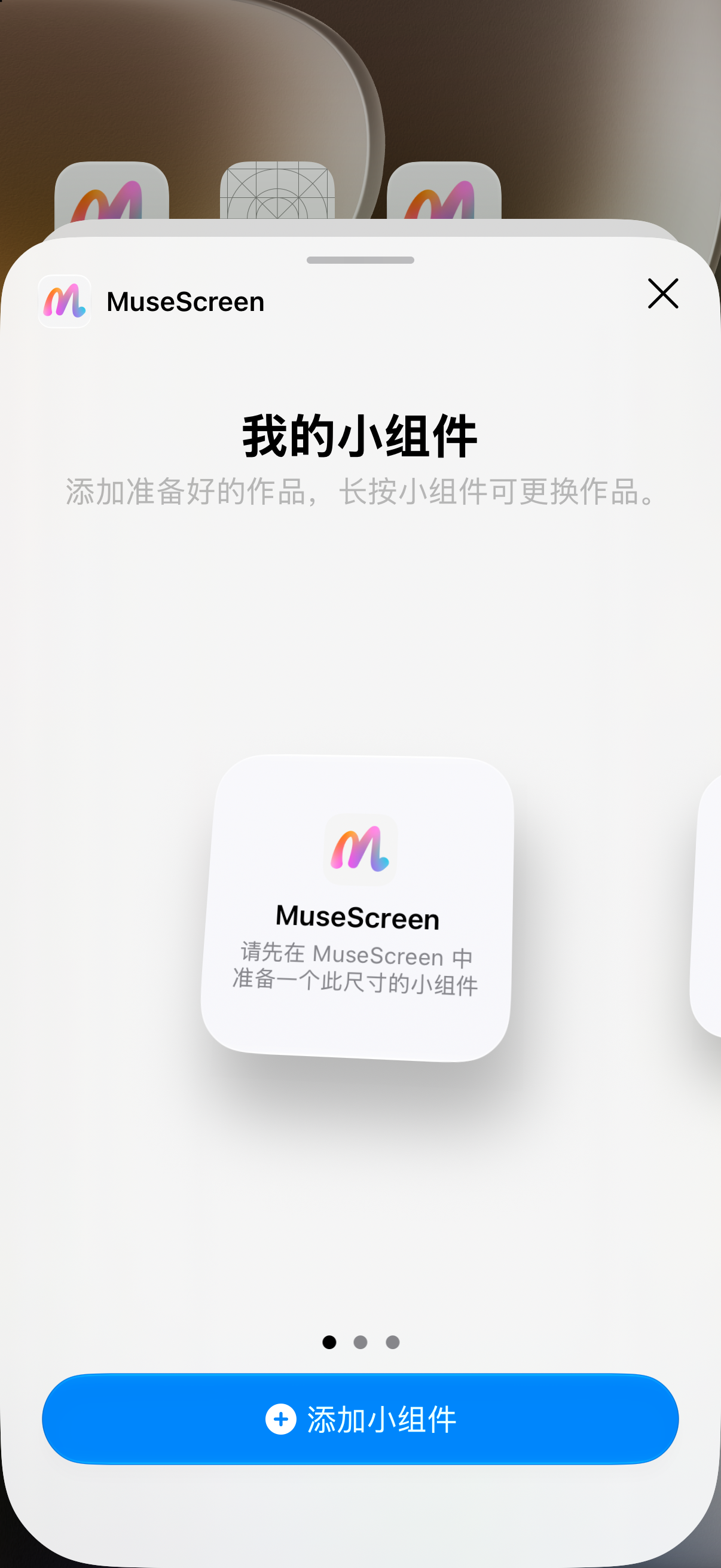
Actual iPhone 17, iOS 27.0 simulator system picker in Simplified Chinese. A placeholder shows that the preview is not displaying selected content; it does not by itself mean your design was lost.
Empty or unexpected content
- Check that the saved design still exists in Library. Do not delete designs or clear app data as a first step.
- Where the system widget supports configuration, select the saved design again. For a photo widget, reselect the image in the editor.
- Save and refresh. If needed, remove only the home-screen widget and add it again, keeping the in-app design.
If it is still missing
Send your model, OS version, MuseScreen version and target screen through Profile → Send feedback. Home-screen support does not establish lock-screen or cover-screen support.
Official references
Official system instructions. Menus vary by system version, device and region; these references do not establish support for every system feature in MuseScreen.