Updated
Save changes
- Choose Save and wait for success.
- To keep editing, use Save and Continue in save options, or adjust Close editor after saving in Settings.
- Check the design in Library. Retry a failed Home Screen update as instructed: saving a design and updating the Home Screen are separate results.
When a required real record is missing, bind it or save a draft if offered. A draft does not bypass required content checks before installation.
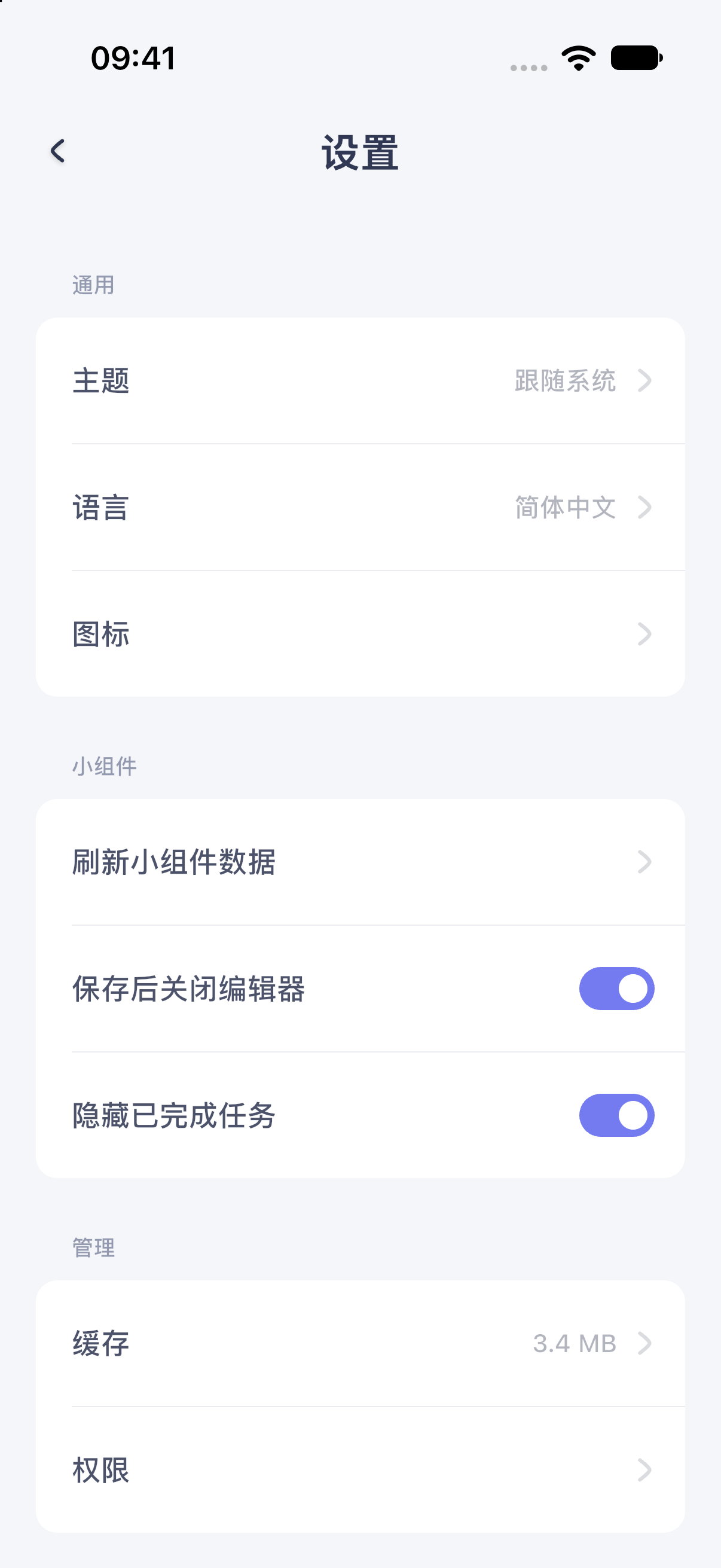
iPhone 17 simulator · iOS 27.0 · MuseScreen 2.2.0 (1). The screenshot shows the Simplified Chinese interface.
Leave an unsaved edit
An unsaved-changes prompt lets you save and exit, discard changes, or dismiss the prompt to keep editing. Discarding changes to an existing work does not delete its previously saved version.
Undo reverses editing operations; it is not a substitute for saving or a device-migration backup.
Recover a draft
If a recovery prompt appears when reopening, choose Recover Editing to restore the draft. Save afterwards to update the actual design. Discard a draft only if you no longer need its changes.
A recovery prompt is not guaranteed. Do not force-close the app as a way to save.
Failed saves and conflicts
Keep the editor open after a failure and retry as instructed. If the work has a newer version, your current edit will not overwrite it automatically.
Use Save a Copy when offered to keep your current work. Discard and Load Latest only when those edits are no longer needed. If an upgrade is required, keep the design and update the app rather than deleting it.
Include the message and reproduction steps in feedback if the problem persists.