Updated
Organize Library
- Rename a design from its More menu so it is easy to identify.
- Pin frequently used designs. Copy a design before making a variant.
- Use Library's create control and choose a size to start from blank.
Copies may retain personal-data references. Select different records if two designs should show different goals or lists.
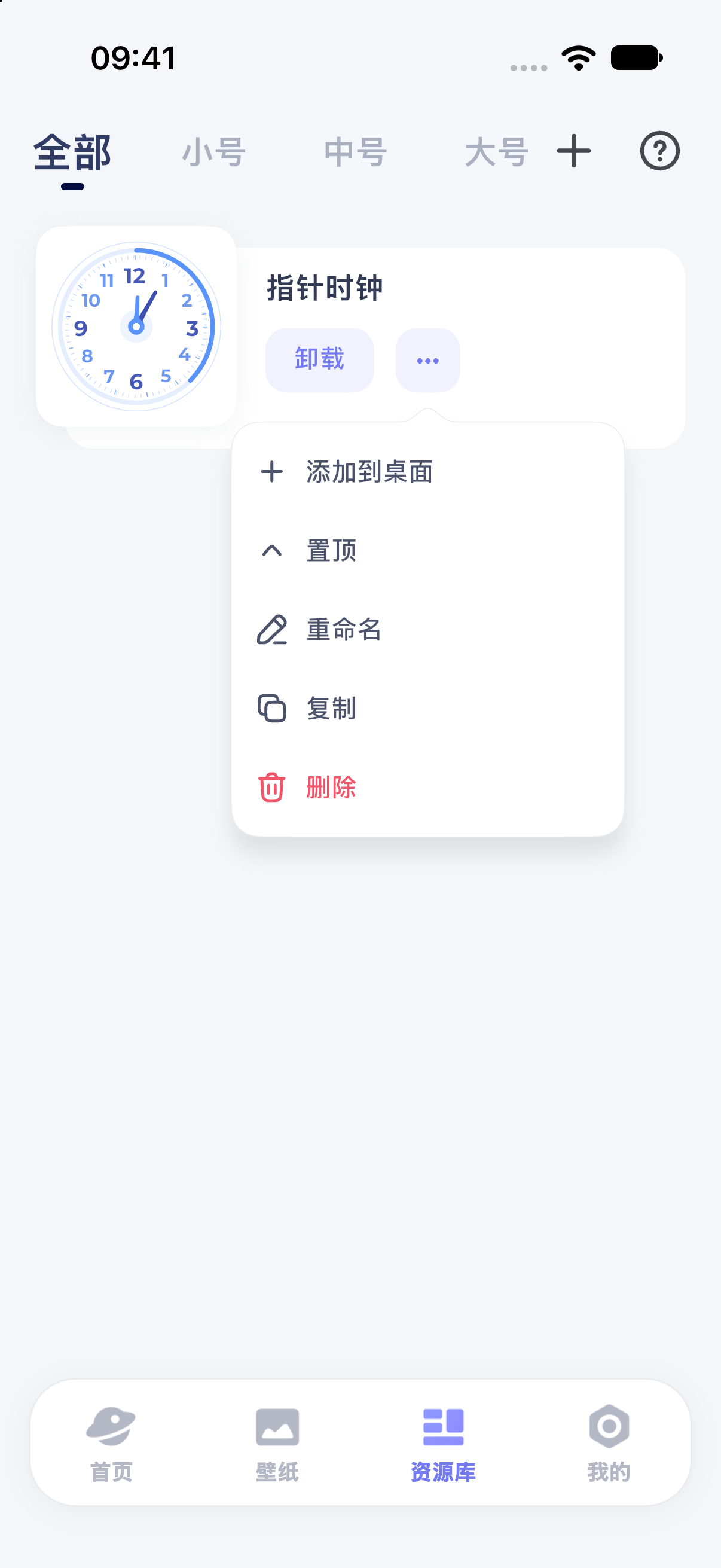
iPhone 17 simulator · iOS 27.0 · MuseScreen 2.2.0 (1). The screenshot shows the Simplified Chinese interface.
Add a design again
For an installed design, More → Add to Home Screen retries preparation and system addition. Follow the guide under Library's question-mark button. Preparing again does not guarantee automatic placement of another system widget.
Understand removal
| Action | Effect to consider |
|---|---|
| Remove from the system Home Screen | Removes the placement; the Library design remains editable |
| Uninstall a widget inside the app | Keeps editing content; a leftover Home Screen placeholder may need manual removal |
| Delete a Library design | Deletes the saved design and cleans up its installation; this is more than rearranging the Home Screen |
Deleting a task, goal or date is separate from deleting a design. Check other designs that may use a record before deleting it.
Check the result
Confirm retained designs still open in Library and remove any leftover system placeholders. Read data retention before reinstalling, clearing data or changing devices.