Updated
Change app appearance
- Choose theme and language in Profile → Settings. With Auto selected, appearance follows the device’s current setting.
- Help opened from the app receives its theme, language and text scale. In a regular browser, use the theme and language menus at the top.
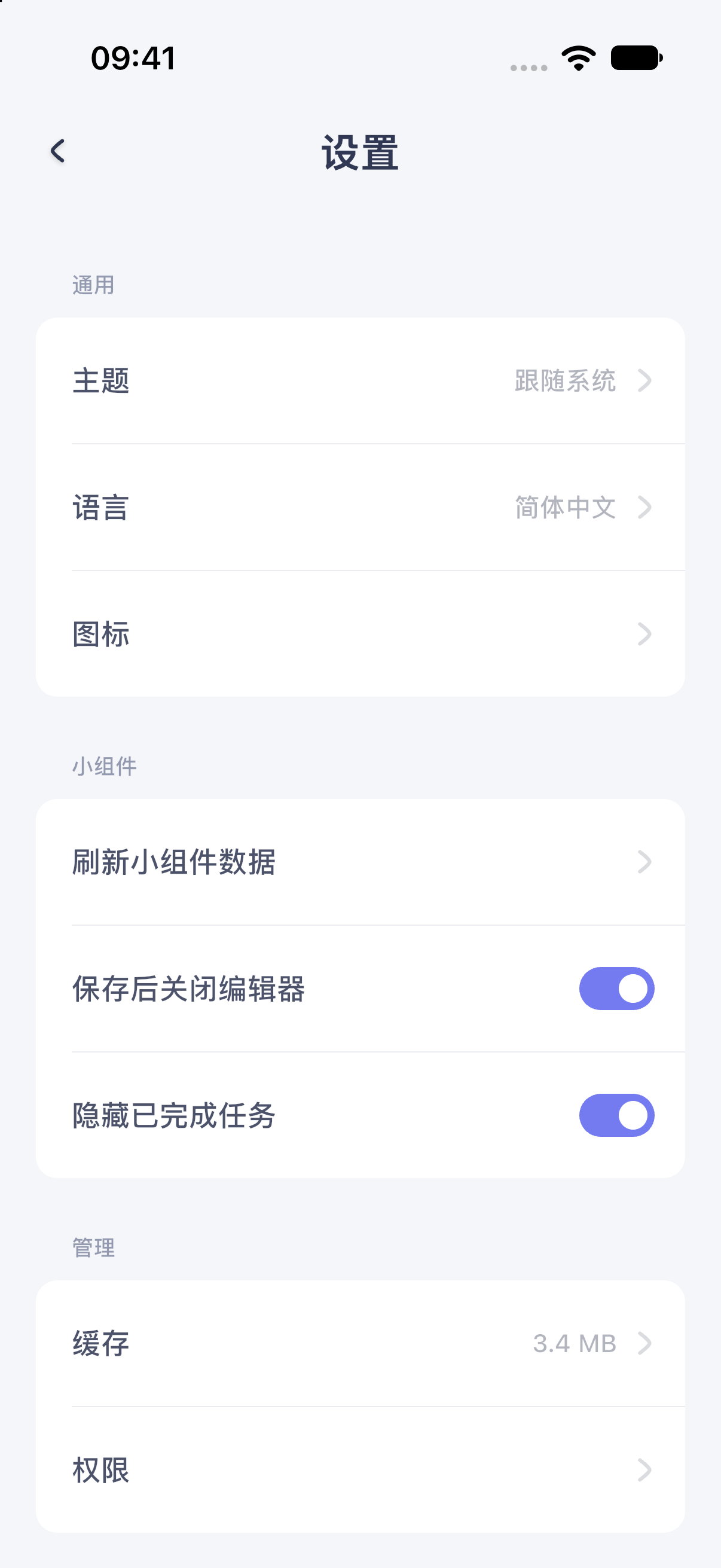
iPhone 17 simulator · iOS 27.0 · MuseScreen 2.2.0 (1). The screenshot shows the Simplified Chinese interface.
Widget design and interface text differ
The app’s language and theme do not automatically translate or redesign every template. Check the template’s editable date format, fixed text, font and background.
For clipped text, check widget size, text length and font selection. Do not reduce the phone’s accessibility text size just to fix one template.
Report a specific difference
Compare the editor and home screen at the same widget size. Record theme, language and text scale, and include them if the difference persists.